2021-09-02
OpenCV-Python 的入口很轻:`import cv2`,读一张图,转个颜色,做个滤波,找个边缘,画个框。它不像深度学习框架那样一上来就要训练模型,而是更像一把图像处理工具刀,适合快速把图片和视频帧加工成你想要的形态。
这篇围绕几个高频动作来写:图片读写、颜色空间、裁剪缩放、阈值、滤波、边缘、轮廓、绘制标注、视频帧处理,再补几个能直接拼起来的小脚本。
常规桌面环境:
pip install opencv-python
如果你需要 contrib 模块:
pip install opencv-contrib-python
如果在服务器、Docker、无界面环境里跑,通常选 headless 包更干净:
pip install opencv-python-headless
注意:这些包都提供 cv2 命名空间,别在同一个环境里混装多个 OpenCV wheel。装乱了很容易出现导入冲突。
验证一下:
import cv2

print(cv2.__version__)
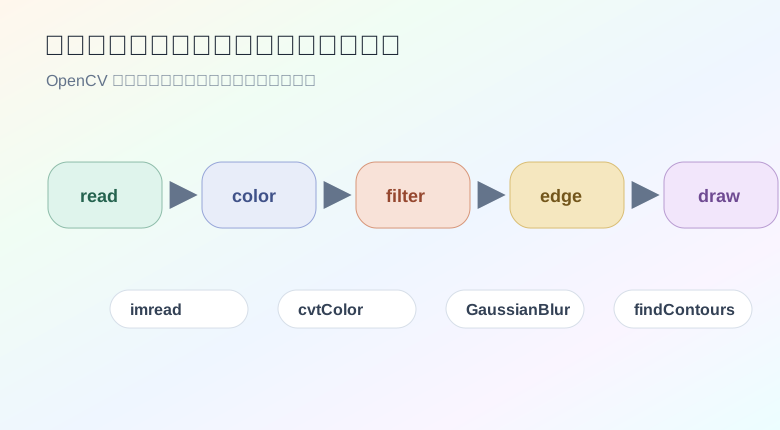
OpenCV 的图像处理基本都是围绕 NumPy 数组展开。图片读进来之后,本质上就是一个多维数组。
from pathlib import Path

import cv2


input_path = Path("input.jpg")
output_path = Path("output_gray.jpg")

image = cv2.imread(str(input_path))

if image is None:
    raise FileNotFoundError(f"image not found: {input_path}")

gray = cv2.cvtColor(image, cv2.COLOR_BGR2GRAY)
cv2.imwrite(str(output_path), gray)
这里有个必须养成的习惯:cv2.imread() 失败时不会抛异常,而是返回 None。所以读图后先判断,别直接往下处理。
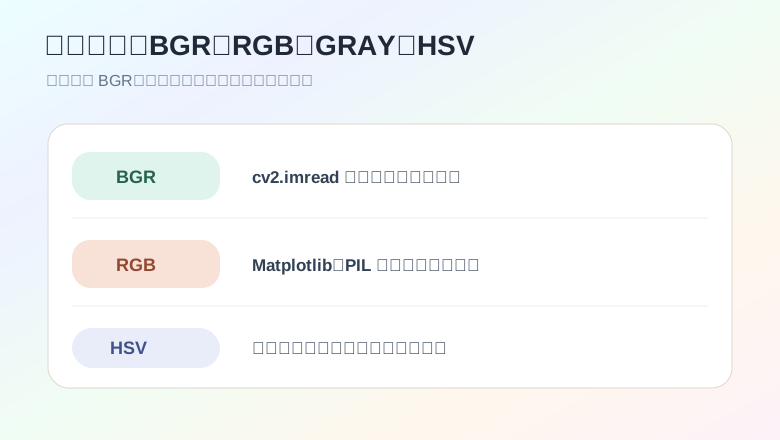
OpenCV 默认读出来是 BGR,不是 RGB。
很多显示库和模型输入习惯 RGB。如果你用 Matplotlib 展示 OpenCV 读出来的图,却发现颜色怪怪的,大概率就是通道顺序没转。
import cv2
import matplotlib.pyplot as plt


image_bgr = cv2.imread("input.jpg")
image_rgb = cv2.cvtColor(image_bgr, cv2.COLOR_BGR2RGB)

plt.imshow(image_rgb)
plt.axis("off")
plt.show()
常用颜色转换:
gray = cv2.cvtColor(image_bgr, cv2.COLOR_BGR2GRAY)
rgb = cv2.cvtColor(image_bgr, cv2.COLOR_BGR2RGB)
hsv = cv2.cvtColor(image_bgr, cv2.COLOR_BGR2HSV)
灰度适合阈值、边缘、轮廓。HSV 适合按颜色范围做筛选,比如找红色、绿色、蓝色物体。
OpenCV 图片就是数组,所以裁剪非常直接。
image = cv2.imread("input.jpg")

# y1:y2, x1:x2
crop = image[80:320, 120:460]
cv2.imwrite("crop.jpg", crop)
缩放:
resized = cv2.resize(image, (640, 360), interpolation=cv2.INTER_AREA)
按比例缩放:
h, w = image.shape[:2]
scale = 0.5
resized = cv2.resize(
    image,
    (int(w * scale), int(h * scale)),
    interpolation=cv2.INTER_AREA,
)
翻转:
flip_horizontal = cv2.flip(image, 1)
flip_vertical = cv2.flip(image, 0)
flip_both = cv2.flip(image, -1)
几何操作看起来简单,但很多项目的问题都出在坐标顺序上。记住:数组切片是 y, x,而很多绘图函数用的是 (x, y)。
绕中心旋转:
import cv2


image = cv2.imread("input.jpg")
h, w = image.shape[:2]
center = (w // 2, h // 2)

matrix = cv2.getRotationMatrix2D(center, 15, 1.0)
rotated = cv2.warpAffine(image, matrix, (w, h))

cv2.imwrite("rotated.jpg", rotated)
如果你想做 OCR 前处理、证件照矫正、票据方向修正,仿射和透视变换会非常常用。
一个透视变换骨架:
import numpy as np


src = np.float32([
    [120, 80],
    [520, 100],
    [560, 420],
    [100, 400],
])

dst = np.float32([
    [0, 0],
    [500, 0],
    [500, 320],
    [0, 320],
])

matrix = cv2.getPerspectiveTransform(src, dst)
warped = cv2.warpPerspective(image, matrix, (500, 320))
边缘、轮廓、阈值都怕噪声。滤波不是万能,但经常是必要前置步骤。
均值滤波:
blur = cv2.blur(image, (5, 5))
高斯滤波:
blur = cv2.GaussianBlur(image, (5, 5), 0)
中值滤波:
median = cv2.medianBlur(image, 5)
一般经验:
不要为了“干净”把图片糊成一片。图像处理经常是在噪声和细节之间取平衡。
固定阈值:
gray = cv2.cvtColor(image, cv2.COLOR_BGR2GRAY)

_, binary = cv2.threshold(
    gray,
    127,
    255,
    cv2.THRESH_BINARY,
)
自适应阈值:
binary = cv2.adaptiveThreshold(
    gray,
    255,
    cv2.ADAPTIVE_THRESH_GAUSSIAN_C,
    cv2.THRESH_BINARY,
    31,
    5,
)
Otsu 阈值:
_, binary = cv2.threshold(
    gray,
    0,
    255,
    cv2.THRESH_BINARY + cv2.THRESH_OTSU,
)
固定阈值适合光照稳定的图片。光照不均时,自适应阈值通常更顺手。
阈值得到的二值图经常有小洞、小碎点。形态学操作可以修一修。
import numpy as np


kernel = np.ones((5, 5), dtype=np.uint8)

opened = cv2.morphologyEx(binary, cv2.MORPH_OPEN, kernel)
closed = cv2.morphologyEx(binary, cv2.MORPH_CLOSE, kernel)
开运算适合去掉小白点。
闭运算适合填掉小黑洞。
膨胀和腐蚀:
dilated = cv2.dilate(binary, kernel, iterations=1)
eroded = cv2.erode(binary, kernel, iterations=1)
做轮廓前,形态学处理经常能让结果稳定不少。
Canny 是很常见的边缘检测方法。
gray = cv2.cvtColor(image, cv2.COLOR_BGR2GRAY)
blur = cv2.GaussianBlur(gray, (5, 5), 0)
edges = cv2.Canny(blur, 80, 160)

cv2.imwrite("edges.jpg", edges)
阈值怎么选?没有一个永远正确的值。可以先从较宽松的范围试起,再根据边缘断裂或噪点情况微调。
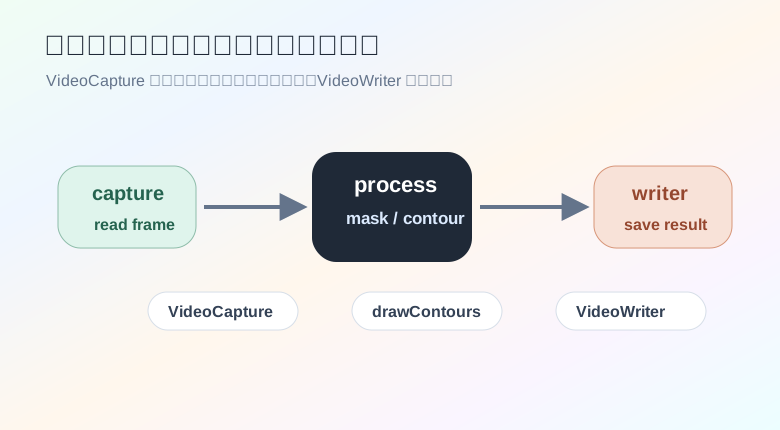
轮廓检测常见流程:
灰度 -> 滤波 -> 阈值或边缘 -> findContours -> 筛选 -> 绘制
import cv2


image = cv2.imread("input.jpg")
gray = cv2.cvtColor(image, cv2.COLOR_BGR2GRAY)
blur = cv2.GaussianBlur(gray, (5, 5), 0)

_, binary = cv2.threshold(
    blur,
    0,
    255,
    cv2.THRESH_BINARY + cv2.THRESH_OTSU,
)

contours, hierarchy = cv2.findContours(
    binary,
    cv2.RETR_EXTERNAL,
    cv2.CHAIN_APPROX_SIMPLE,
)

output = image.copy()

for contour in contours:
    area = cv2.contourArea(contour)
    if area < 300:
        continue

    x, y, w, h = cv2.boundingRect(contour)
    cv2.rectangle(output, (x, y), (x + w, y + h), (0, 255, 0), 2)
    cv2.putText(
        output,
        f"{int(area)}",
        (x, max(20, y - 8)),
        cv2.FONT_HERSHEY_SIMPLEX,
        0.6,
        (0, 255, 0),
        2,
    )

cv2.imwrite("contours.jpg", output)
cv2.RETR_EXTERNAL 只取最外层轮廓。很多目标检测前处理场景,这样就够了。
cv2.CHAIN_APPROX_SIMPLE 会压缩轮廓点,减少冗余。
如果目标颜色明确,比如找蓝色工牌、绿色按钮、红色标记,可以用 HSV 范围。
import numpy as np


image = cv2.imread("input.jpg")
hsv = cv2.cvtColor(image, cv2.COLOR_BGR2HSV)

lower = np.array([35, 60, 60])
upper = np.array([85, 255, 255])

mask = cv2.inRange(hsv, lower, upper)

kernel = np.ones((5, 5), dtype=np.uint8)
mask = cv2.morphologyEx(mask, cv2.MORPH_OPEN, kernel)
mask = cv2.morphologyEx(mask, cv2.MORPH_CLOSE, kernel)

result = cv2.bitwise_and(image, image, mask=mask)
cv2.imwrite("green_mask.jpg", result)
HSV 的好处是把色相、饱和度、亮度拆开了,比直接在 BGR 里调范围更直观。
OpenCV 画图函数很适合做结果可视化。
canvas = image.copy()

cv2.line(canvas, (30, 30), (300, 30), (255, 0, 0), 3)
cv2.rectangle(canvas, (60, 80), (260, 220), (0, 255, 0), 2)
cv2.circle(canvas, (360, 160), 48, (0, 0, 255), 3)

cv2.putText(
    canvas,
    "OpenCV",
    (60, 270),
    cv2.FONT_HERSHEY_SIMPLEX,
    1.0,
    (0, 255, 255),
    2,
)
颜色仍然是 BGR,比如 (0, 255, 0) 是绿色。
如果要在图片上写中文,cv2.putText 不太合适。可以借助 PIL:
from PIL import Image, ImageDraw, ImageFont
import cv2
import numpy as np


image_bgr = cv2.imread("input.jpg")
image_rgb = cv2.cvtColor(image_bgr, cv2.COLOR_BGR2RGB)

pil_image = Image.fromarray(image_rgb)
draw = ImageDraw.Draw(pil_image)
font = ImageFont.truetype("PingFang.ttc", 32)
draw.text((40, 40), "检测结果", fill=(255, 0, 0), font=font)

output_bgr = cv2.cvtColor(np.array(pil_image), cv2.COLOR_RGB2BGR)
cv2.imwrite("text_cn.jpg", output_bgr)
字体文件路径要按自己的系统调整。
OpenCV 处理视频,本质上是不断读取帧,再把每一帧当图片处理。
import cv2


cap = cv2.VideoCapture("input.mp4")

if not cap.isOpened():
    raise RuntimeError("video open failed")

while True:
    ok, frame = cap.read()
    if not ok:
        break

    gray = cv2.cvtColor(frame, cv2.COLOR_BGR2GRAY)
    edges = cv2.Canny(gray, 80, 160)

    cv2.imshow("edges", edges)

    if cv2.waitKey(1) & 0xFF == ord("q"):
        break

cap.release()
cv2.destroyAllWindows()
如果是服务器环境,没有窗口能力,就不要用 imshow。可以把结果保存成图片、视频,或者交给后续程序处理。
保存视频:
cap = cv2.VideoCapture("input.mp4")

if not cap.isOpened():
    raise RuntimeError("video open failed")

width = int(cap.get(cv2.CAP_PROP_FRAME_WIDTH))
height = int(cap.get(cv2.CAP_PROP_FRAME_HEIGHT))
fps = cap.get(cv2.CAP_PROP_FPS) or 25

writer = cv2.VideoWriter(
    "output.mp4",
    cv2.VideoWriter_fourcc(*"mp4v"),
    fps,
    (width, height),
)

while True:
    ok, frame = cap.read()
    if not ok:
        break

    gray = cv2.cvtColor(frame, cv2.COLOR_BGR2GRAY)
    edges = cv2.Canny(gray, 80, 160)
    edges_bgr = cv2.cvtColor(edges, cv2.COLOR_GRAY2BGR)
    writer.write(edges_bgr)

cap.release()
writer.release()
摄像头通常用设备编号打开。
cap = cv2.VideoCapture(0)

if not cap.isOpened():
    raise RuntimeError("camera open failed")

while True:
    ok, frame = cap.read()
    if not ok:
        break

    cv2.imshow("camera", frame)

    if cv2.waitKey(1) & 0xFF == ord("q"):
        break

cap.release()
cv2.destroyAllWindows()
如果打不开摄像头,先排查权限、设备编号、系统隐私设置和后端编码库。
这个小脚本适合用来理解“灰度、滤波、阈值、轮廓、框选”的组合。
import cv2


def find_largest_object(image_path: str, output_path: str) -> None:
    image = cv2.imread(image_path)
    if image is None:
        raise FileNotFoundError(image_path)

    gray = cv2.cvtColor(image, cv2.COLOR_BGR2GRAY)
    blur = cv2.GaussianBlur(gray, (5, 5), 0)

    _, binary = cv2.threshold(
        blur,
        0,
        255,
        cv2.THRESH_BINARY + cv2.THRESH_OTSU,
    )

    contours, _ = cv2.findContours(
        binary,
        cv2.RETR_EXTERNAL,
        cv2.CHAIN_APPROX_SIMPLE,
    )

    if not contours:
        cv2.imwrite(output_path, image)
        return

    largest = max(contours, key=cv2.contourArea)
    x, y, w, h = cv2.boundingRect(largest)

    output = image.copy()
    cv2.rectangle(output, (x, y), (x + w, y + h), (0, 255, 0), 3)
    cv2.imwrite(output_path, output)


find_largest_object("input.jpg", "largest.jpg")
这个方法适合背景较干净、主体和背景差异明显的图片。如果场景复杂,就要换更细的分割策略,或者接入模型。
文件夹里一批图片,统一缩放并保存。
from pathlib import Path

import cv2


def resize_keep_ratio(image, max_width: int):
    h, w = image.shape[:2]

    if w <= max_width:
        return image

    scale = max_width / w
    target_size = (max_width, int(h * scale))
    return cv2.resize(image, target_size, interpolation=cv2.INTER_AREA)


def build_thumbnails(input_dir: str, output_dir: str, max_width: int = 480):
    src_dir = Path(input_dir)
    dst_dir = Path(output_dir)
    dst_dir.mkdir(parents=True, exist_ok=True)

    for path in src_dir.glob("*"):
        if path.suffix.lower() not in {".jpg", ".jpeg", ".png", ".webp"}:
            continue

        image = cv2.imread(str(path))
        if image is None:
            continue

        thumbnail = resize_keep_ratio(image, max_width)
        cv2.imwrite(str(dst_dir / path.name), thumbnail)


build_thumbnails("images", "thumbs")
这个脚本看起来普通,但在后台管理、素材处理、数据集预处理里很实用。
把 HSV 抠色、轮廓和视频帧结合起来:
import cv2
import numpy as np


cap = cv2.VideoCapture("input.mp4")

if not cap.isOpened():
    raise RuntimeError("video open failed")

while True:
    ok, frame = cap.read()
    if not ok:
        break

    hsv = cv2.cvtColor(frame, cv2.COLOR_BGR2HSV)
    mask = cv2.inRange(
        hsv,
        np.array([35, 60, 60]),
        np.array([85, 255, 255]),
    )

    contours, _ = cv2.findContours(
        mask,
        cv2.RETR_EXTERNAL,
        cv2.CHAIN_APPROX_SIMPLE,
    )

    for contour in contours:
        area = cv2.contourArea(contour)
        if area < 500:
            continue

        x, y, w, h = cv2.boundingRect(contour)
        cv2.rectangle(frame, (x, y), (x + w, y + h), (0, 255, 0), 2)

    cv2.imshow("green detector", frame)

    if cv2.waitKey(1) & 0xFF == ord("q"):
        break

cap.release()
cv2.destroyAllWindows()
这个版本很基础,但已经能跑通“颜色筛选 + 轮廓框选”的完整链路。
读图后检查 None。
视频读取后检查 cap.isOpened()。
坐标顺序分清:数组切片是 image[y1:y2, x1:x2],绘图点是 (x, y)。
颜色顺序分清:OpenCV 常用 BGR,很多库常用 RGB。
处理前保留原图副本:
output = image.copy()
调参时把中间结果保存出来:
cv2.imwrite("debug_gray.jpg", gray)
cv2.imwrite("debug_binary.jpg", binary)
cv2.imwrite("debug_edges.jpg", edges)
图像处理不要只看最终结果。中间结果能帮你快速判断问题出在颜色、阈值、滤波还是轮廓筛选。