2020-05-23
做 Android 自动化,很多人第一反应是 Appium。Appium 能力完整,但启动链路偏重。uiautomator2 的路线更轻:Python 脚本直接连设备,点按钮、输文本、看元素、截图、拉日志,写起来很像在遥控一台手机。
它适合这些场景:
说明:本文只讨论自有设备、自有 App、测试环境和授权场景。不要把自动化工具用于未授权操作、绕过访问控制或干扰他人服务。
uiautomator2 可以理解成两层:
Python 客户端:你写脚本
Android 设备端:接收命令并执行 UI 操作
你在 Python 里写:
d(text="登录").click()
设备端就去找文字为“登录”的控件,然后执行点击。中间的连接、命令下发、元素查询,uiautomator2 都帮你封装好了。
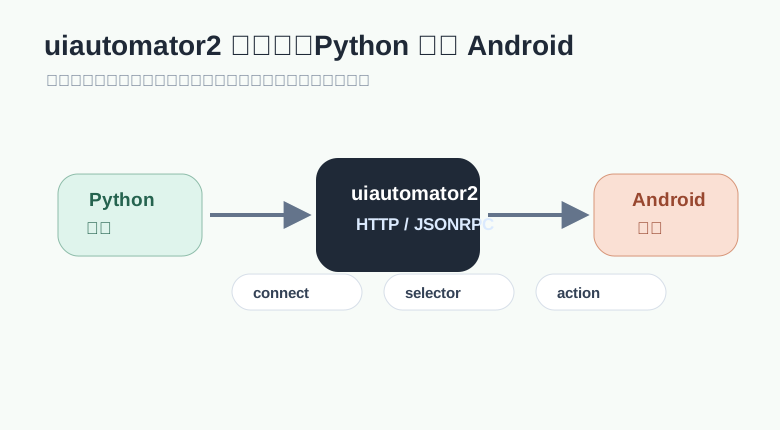
这也是它好用的原因:不用先搭很重的服务端,不用写一堆 capability,先连上设备,脚本就能动起来。
先装 Python 包:
pip install uiautomator2
如果要用元素查看工具,可以再装:
pip install uiautodev
设备侧要打开开发者选项和 USB 调试。电脑侧确认 adb 能看到设备:
adb devices
能看到设备序列号后,写一个最小脚本:
import uiautomator2 as u2


d = u2.connect()
print(d.info)
如果连接了多台设备,最好显式指定序列号:
import uiautomator2 as u2


d = u2.connect("设备序列号")
print(d.device_info)
也可以用 USB 连接函数:
import uiautomator2 as u2


d = u2.connect_usb("设备序列号")
print(d.window_size())
启动 App:
package = "com.example.demo"

d.app_start(package)
启动前先停掉旧进程:
d.app_start(package, stop=True)
停止 App:
d.app_stop(package)
清空 App 数据:
d.app_clear(package)
获取 App 信息:
info = d.app_info(package)
print(info)
查看前台 App:
current = d.app_current()
print(current)
这些 API 很适合放在测试初始化里。比如每个用例开始前重启 App,保证页面状态干净。
自动化脚本能不能长期活下去,定位方式很关键。
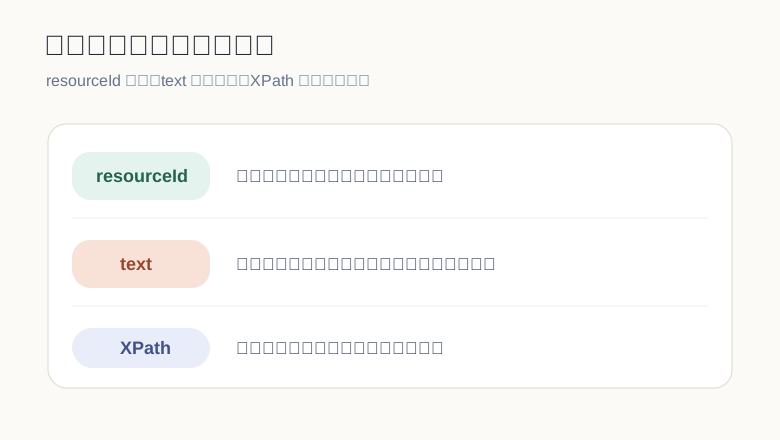
优先级可以粗略这样排:
resourceId > description > text > className > XPath > 坐标
resourceId 最稳:
d(resourceId="com.example.demo:id/username").set_text("zoy")
d(resourceId="com.example.demo:id/password").set_text("123456")
d(resourceId="com.example.demo:id/login").click()
文字定位可读性强:
d(text="登录").click()
d(textContains="提交").click()
描述定位适合图标按钮:
d(description="搜索").click()
类名定位适合配合其他条件:
d(className="android.widget.EditText", text="").set_text("hello")
XPath 适合复杂层级:
d.xpath('//*[@text="设置"]').click()
d.xpath('//*[@resource-id="com.example.demo:id/login"]').click()
坐标点击留到兜底:
d.click(540, 1800)
坐标最容易受分辨率、布局、字体缩放影响。能不用就别急着用。
UI 自动化最怕页面还没加载完,脚本已经开点。比起写一堆 sleep,更建议等元素。
login_button = d(text="登录")

if login_button.exists:
    login_button.click()
XPath 可以这样等:
found = d.xpath('//*[@text="首页"]').wait(timeout=10)

if not found:
    raise RuntimeError("首页入口没有出现")

d.xpath('//*[@text="首页"]').click()
也可以用 click_exists 做轻量点击:
ok = d.xpath('//*[@text="同意"]').click_exists(timeout=5)

if ok:
    print("已处理弹窗")
脚本要稳定,核心不是“等久一点”,而是“等对东西”。看到目标元素再操作,比盲等更可靠。
点击:
d(text="我的").click()
长按:
d(text="删除").long_click()
输入文本:
d(resourceId="com.example.demo:id/search").set_text("自动化测试")
更通用的输入:
d.send_keys("hello uiautomator2", clear=True)
隐藏键盘:
d.hide_keyboard()
清空文本:
d.clear_text()
有些设备输入中文会不稳定,可以优先检查输入法、剪贴板权限和 uiautomator2 的辅助输入方案。
屏幕滑动:
d.swipe(500, 1600, 500, 500)
从底部向上滑:
width, height = d.window_size()
d.swipe(width // 2, int(height * 0.82), width // 2, int(height * 0.25))
拖动:
d.drag(200, 1200, 850, 1200)
滚动列表直到出现指定文字:
d(scrollable=True).scroll.vertical.to(text="安全")
如果页面是标准可滚动控件,优先用 scroll。如果控件层级比较特殊,再考虑坐标滑动。
保存截图:
d.screenshot("screen.png")
拿到图片对象:
image = d.screenshot()
image.save("screen.png")
导出页面层级:
xml = d.dump_hierarchy()

with open("hierarchy.xml", "w", encoding="utf-8") as file:
    file.write(xml)
截图适合做失败现场留存,页面层级适合分析为什么定位不到元素。
一个实用习惯:只要用例失败,就保存截图和层级文件。
def save_debug_artifacts(d, name: str):
    d.screenshot(f"{name}.png")
    xml = d.dump_hierarchy()

    with open(f"{name}.xml", "w", encoding="utf-8") as file:
        file.write(xml)
很多 App 初次启动会有权限、隐私、更新提示。脚本要主动处理,但别写成乱点。
def close_common_popups(d):
    candidates = [
        '//*[@text="同意"]',
        '//*[@text="允许"]',
        '//*[@text="确定"]',
        '//*[@text="取消"]',
        '//*[@text="稍后再说"]',
    ]

    for selector in candidates:
        d.xpath(selector).click_exists(timeout=1)
再启动 App 后调用:
d.app_start("com.example.demo", stop=True)
close_common_popups(d)
这个方法不花哨,但很好维护。弹窗文案变了,就改列表;不用在每个用例里复制一堆判断。
把前面的东西拼起来:
import uiautomator2 as u2


PACKAGE = "com.example.demo"


def login(username: str, password: str):
    d = u2.connect()
    d.app_start(PACKAGE, stop=True)

    d(resourceId="com.example.demo:id/username").set_text(username)
    d(resourceId="com.example.demo:id/password").set_text(password)
    d(resourceId="com.example.demo:id/login").click()

    home_visible = d.xpath('//*[@text="首页"]').wait(timeout=10)
    if not home_visible:
        d.screenshot("login_failed.png")
        raise RuntimeError("登录后没有进入首页")

    return d


if __name__ == "__main__":
    device = login("demo_user", "demo_password")
    print(device.app_current())
真实项目里,账号密码不要硬编码在仓库里。可以放进环境变量、配置文件或测试平台。
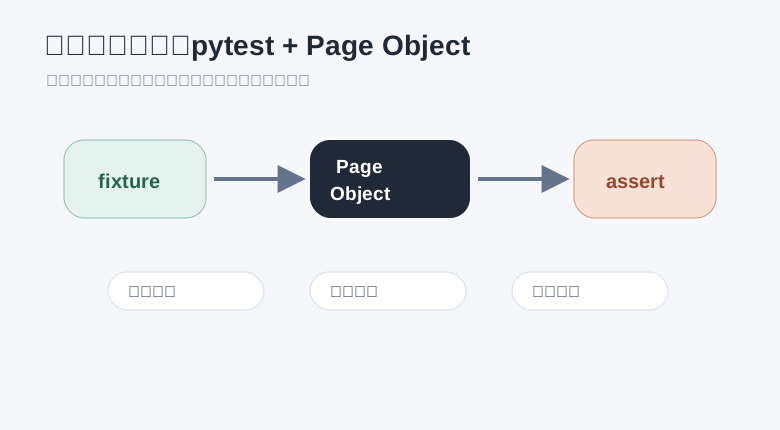
脚本一多,建议直接上 pytest。连接设备、启动 App、失败截图都可以放到 fixture 里。
conftest.py:
import os

import pytest
import uiautomator2 as u2


PACKAGE = "com.example.demo"


@pytest.fixture()
def device(request):
    serial = os.getenv("ANDROID_SERIAL")
    d = u2.connect(serial) if serial else u2.connect()
    d.app_start(PACKAGE, stop=True)

    yield d

    if request.node.rep_call.failed:
        name = request.node.name
        d.screenshot(f"{name}.png")
        xml = d.dump_hierarchy()
        with open(f"{name}.xml", "w", encoding="utf-8") as file:
            file.write(xml)

    d.app_stop(PACKAGE)


@pytest.hookimpl(hookwrapper=True)
def pytest_runtest_makereport(item, call):
    outcome = yield
    report = outcome.get_result()
    setattr(item, f"rep_{report.when}", report)
测试用例:
def test_login_success(device):
    device(resourceId="com.example.demo:id/username").set_text("demo_user")
    device(resourceId="com.example.demo:id/password").set_text("demo_password")
    device(resourceId="com.example.demo:id/login").click()

    assert device.xpath('//*[@text="首页"]').wait(timeout=10) is not None
运行:
pytest -q
多设备时:
ANDROID_SERIAL=设备序列号 pytest -q
当页面动作开始变多,测试用例里就不应该堆满 resourceId。把页面封装成类更清爽。
class LoginPage:
    def __init__(self, d):
        self.d = d

    def input_username(self, value: str):
        self.d(resourceId="com.example.demo:id/username").set_text(value)
        return self

    def input_password(self, value: str):
        self.d(resourceId="com.example.demo:id/password").set_text(value)
        return self

    def tap_login(self):
        self.d(resourceId="com.example.demo:id/login").click()
        return self

    def is_home_visible(self) -> bool:
        return self.d.xpath('//*[@text="首页"]').wait(timeout=10) is not None
用例就会变成:
def test_login_with_page_object(device):
    page = LoginPage(device)

    page.input_username("demo_user") \
        .input_password("demo_password") \
        .tap_login()

    assert page.is_home_visible()
定位细节留在页面类里,用例只表达业务动作。页面改版时,维护成本会低很多。
uiautomator2 不只做 UI 操作,也可以执行 shell 命令:
result = d.shell("getprop ro.product.model")
print(result.output)
授权运行时权限:
d.shell([
    "pm",
    "grant",
    "com.example.demo",
    "android.permission.CAMERA",
])
打开系统页面:
d.shell([
    "am",
    "start",
    "-a",
    "android.settings.SETTINGS",
])
有些事情 UI 点起来很麻烦,shell 一行就能解决。测试脚本里可以两者搭配使用。
推送文件到设备:
d.push("demo.txt", "/sdcard/demo.txt")
从设备拉文件回来:
d.pull("/sdcard/demo.txt", "demo_from_device.txt")
这很适合处理测试素材,比如图片、视频、配置文件、日志文件。
连接失败,先看 adb devices。设备如果没在线,uiautomator2 也连不上。
定位不到元素,先导出 dump_hierarchy()。看 XML 里到底有没有目标文本、id 或 description。
点击没反应,确认元素是否可点击。有些控件文字在子节点上,真正可点击的是父节点。
输入不稳定,检查输入法、剪贴板能力和系统权限。必要时用 send_keys,或者在测试设备上配置稳定输入方案。
页面偶发失败,别先怪框架。加等待、加截图、加层级文件,先把失败现场拿到。
多设备执行,必须明确设备序列号。不要让脚本随机连第一台设备。
项目可以这样摆:
android_tests/
  pages/
    login_page.py
    home_page.py
  tests/
    test_login.py
    test_profile.py
  conftest.py
  pytest.ini
pages 放页面封装,tests 放用例,conftest.py 放设备 fixture。结构不复杂,但能避免脚本越写越散。
uiautomator2 的核心价值不是 API 多,而是它足够轻:
连接设备
定位元素
执行动作
保存现场
交给 pytest 管理
从一个最小脚本开始,把登录、弹窗、截图这些基础能力封装好,再慢慢铺到更多页面。只要定位方式稳、等待写得准、失败现场留得全,Android UI 自动化就不会变成一堆脆弱脚本。
参考资料: